Help
Use your own web address
Already own an address like www.yourbusiness.ie? Your ChooseLocal page can live there. No technical knowledge needed: about 10 minutes, one click at a time.
Pick where you bought your address
Each guide shows every click with a picture.
Bought it somewhere else, or not sure? Follow the steps below. They work everywhere.
What you're doing, in plain words
Your web address works like a signpost. Right now it points at your old website, or at nothing. You're going to turn the signpost so it points at your ChooseLocal page. Your page doesn't change, and your email keeps working.
You'll need
- About 10 minutes.
- The email you use for ChooseLocal.
- The login for the company you bought your address from.
Rather not do it yourself? Email team@gowtom.tech with your address and we'll do it with you.
Part 1 · 2 minutes
In ChooseLocal
Type your address and click Save.
Part 2 · 7 minutes
Where you bought your address
Change two settings.
Part 3 · 1 minute
Back in ChooseLocal
Check it worked.
Part 1 · 2 minutes
In ChooseLocal
Did we build your site for you? Then we've already done this part. Skip to Part 2.
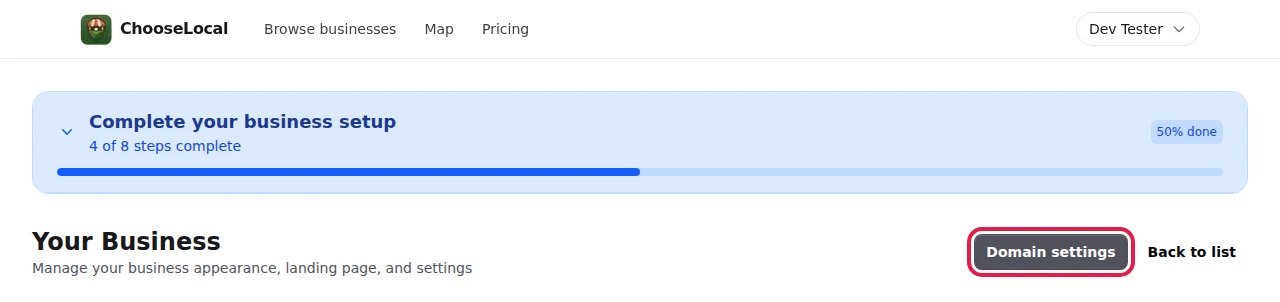
Step 1: Open Domain settings
Sign in at chooselocal.ie. Open your business. Click Domain settings.
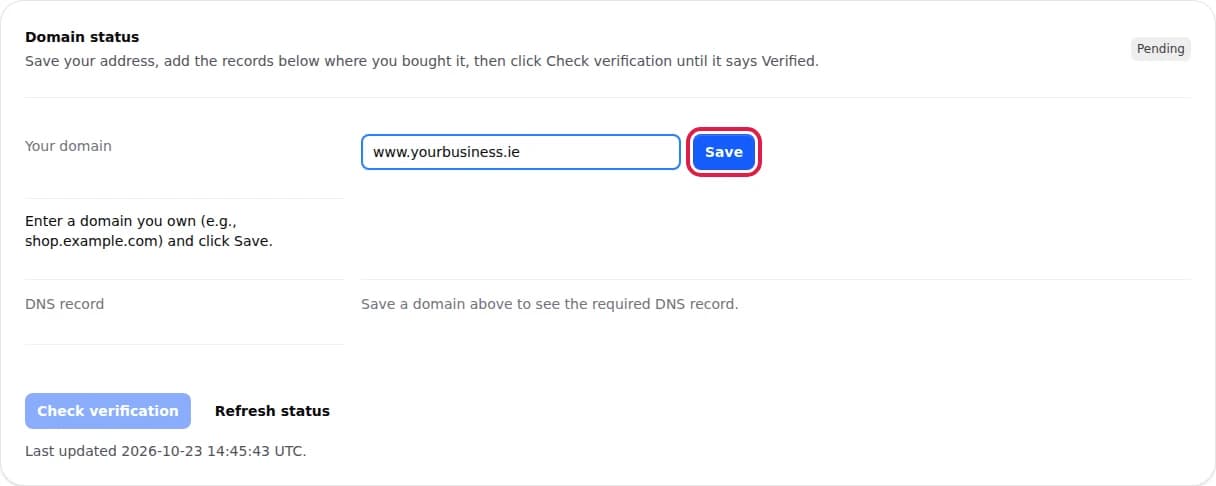
Step 2: Type your address and click Save
Type your address with www at the start, for example www.yourbusiness.ie. Then click Save.
Don't worry about the version without www. It will work too.
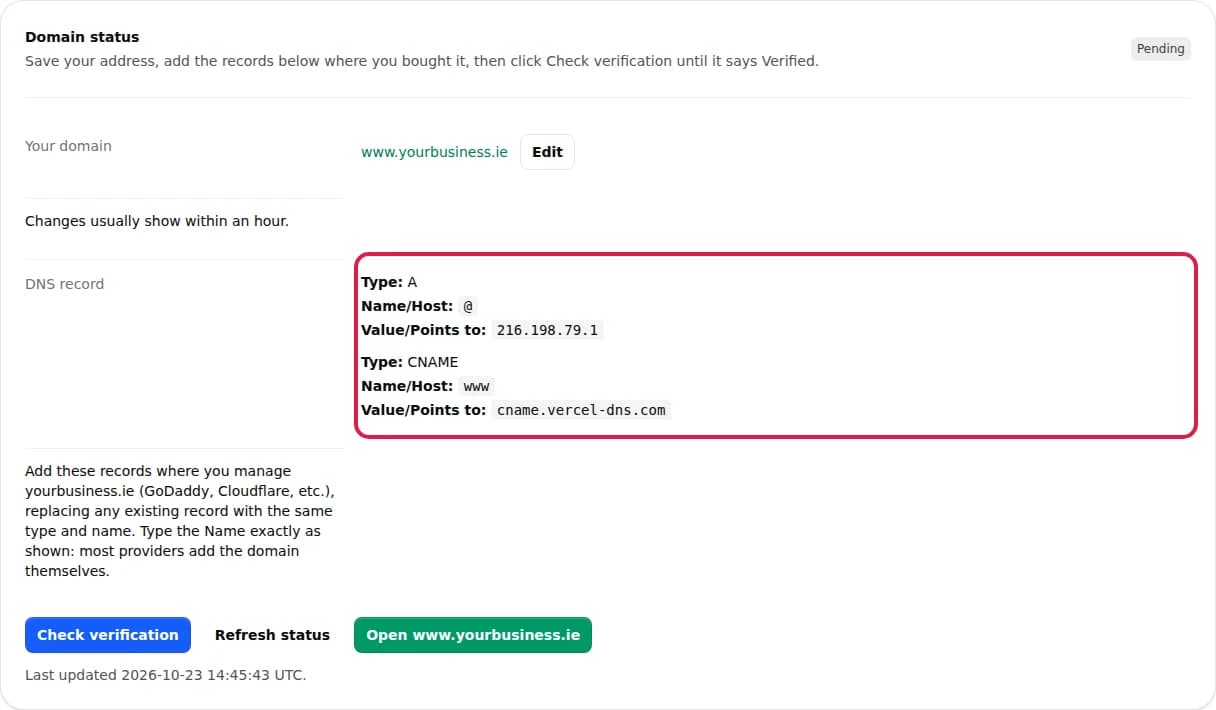
Step 3: Leave this page open
ChooseLocal now shows two rows, under DNS record. You'll copy them in Part 2, so keep this page open in its own tab.
It says Pending. That's normal: it changes when you finish Part 3.
Part 2 · 7 minutes
Where you bought your address
Only change the two settings shown here. Leave everything else as it is.
Step 4: Change two settings
Sign in to the company you bought your address from. Open your address, and look for a page called DNS (sometimes DNS settings, DNS records or Advanced DNS). It shows a list of rows.
Make these two rows match. If a row like it is already there, change it instead of adding a new one.
- TypeAName (or Host)
@Value (or Points to)216.198.79.1 - TypeCNAMEName (or Host)
wwwValue (or Points to)cname.vercel-dns.com
In the Name box type only @ or www, not your full address. Most companies add the rest for you. If you see a setting called forwarding or parked page, turn it off. If step 3 showed a third row (TXT), add that too, exactly as ChooseLocal shows it.
- TypeAName (or Host)
Part 3 · 1 minute
Back in ChooseLocal
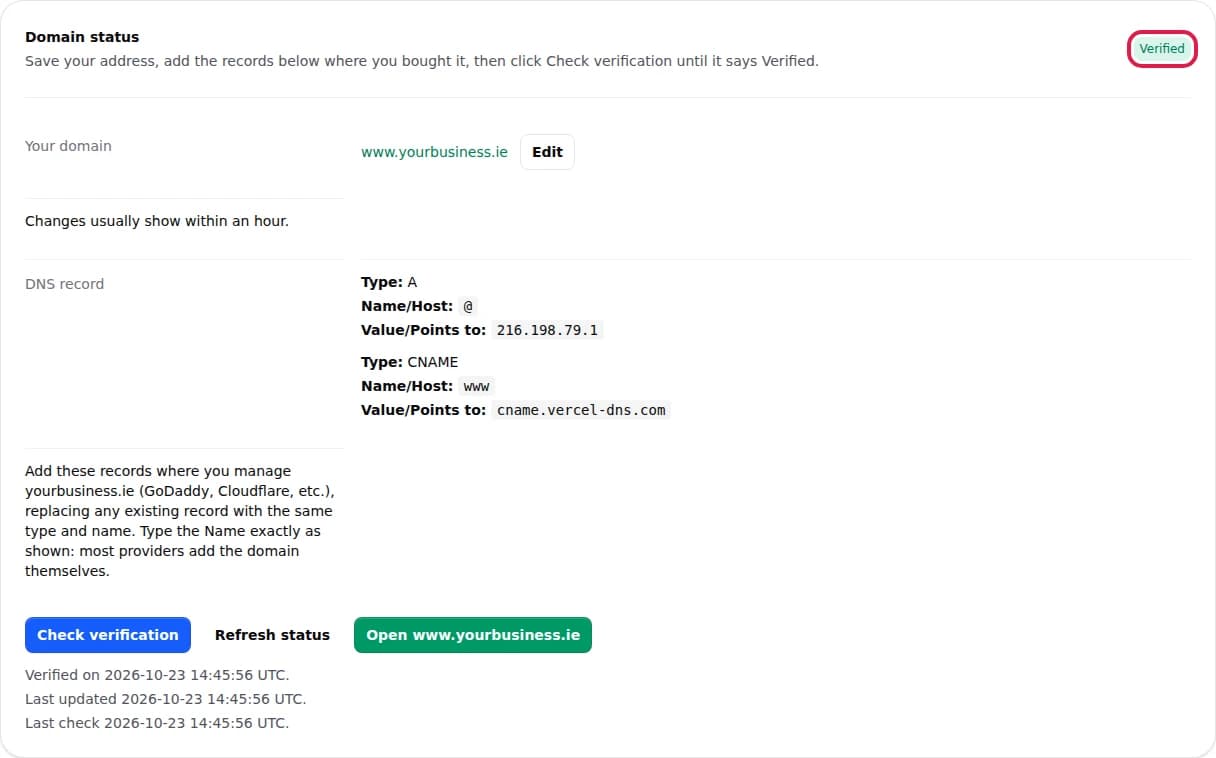
Step 5: Click Check verification
Go back to the ChooseLocal tab. Click Check verification. When you see a green Verified, you're done.
Still says Pending? That's normal for a while. Try again in 15 minutes. It nearly always works within an hour.
What happens next
- Your page shows on your address within an hour, often within minutes.
- Both yourbusiness.ie and www.yourbusiness.ie open your page.
- In the first few minutes your browser may warn that the page is "not secure". That goes away by itself.
- Your email keeps working. You didn't touch the settings it uses.
- Google keeps showing your business, and your Google reviews stay exactly as they are.
Stuck, or can't find the DNS page? Email team@gowtom.tech with your address. We'll do it with you.